> ## Documentation Index
> Fetch the complete documentation index at: https://www.plain.com/docs/llms.txt
> Use this file to discover all available pages before exploring further.
# Slack
> Sync messages from selected Slack channels into Plain as threads, and reply from Plain without leaving the queue.
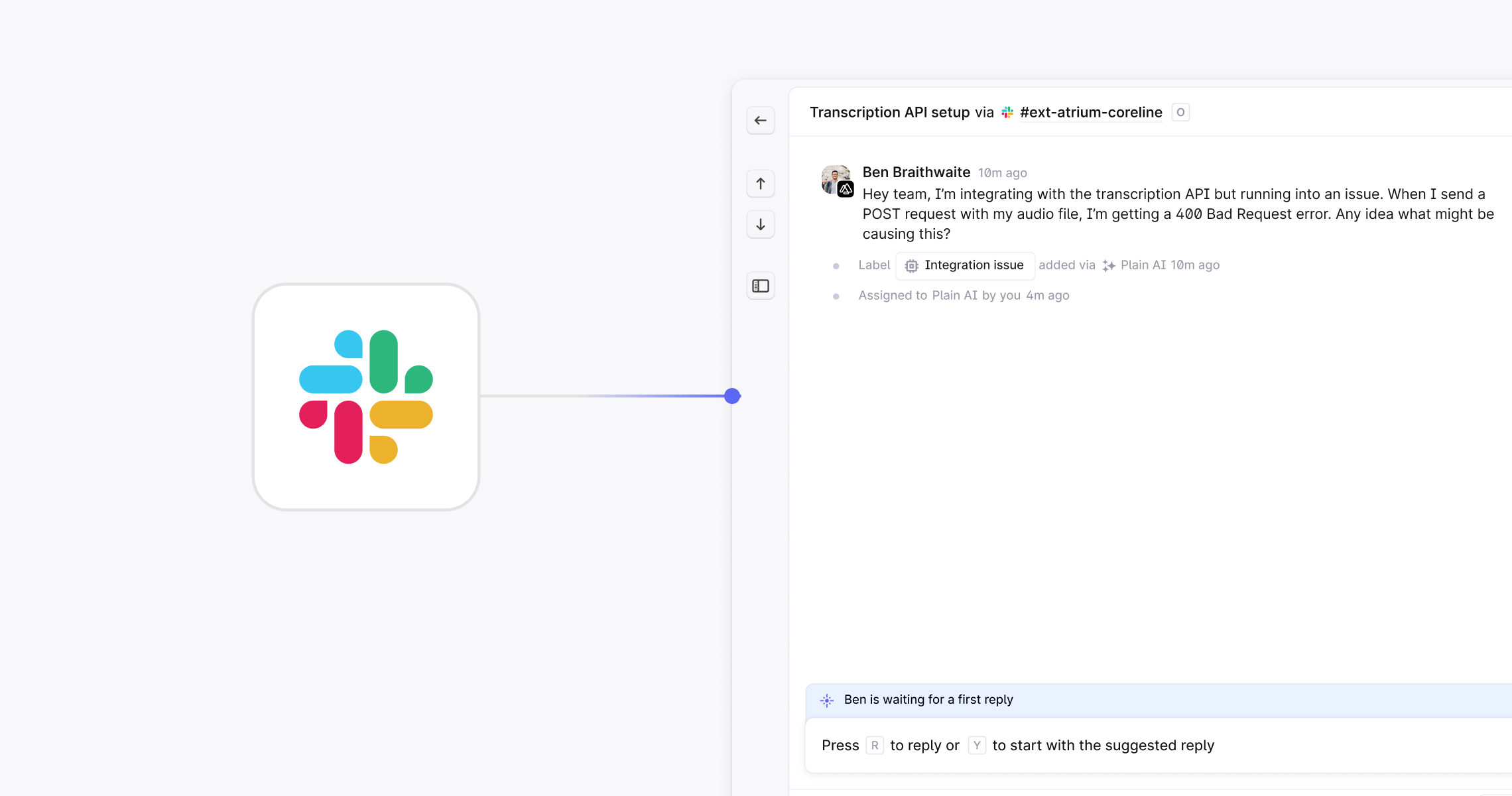
Plain syncs messages from the Slack channels you choose into Plain as [threads](/docs/product/platform/threads/what-is-a-thread). Your team triages and replies from Plain, and the reply posts back to Slack. Threads from Slack carry the same [labels](/docs/product/platform/labels), [SLAs](/docs/product/platform/slas), and [workflows](/docs/product/workflows) as every other channel, and can be linked to [Linear](/docs/product/integrations/linear), [Jira](/docs/product/integrations/jira), or [incident.io](/docs/product/integrations/incident.io).
 ## Set up Slack
In Plain, go to **Settings → Slack** and click **Connect to Slack**. Follow the prompts to authorize the right Slack workspace.
Grant permission for replies to be sent from your Slack profile. This is what lets Plain replies appear in Slack under your name.
In **Settings → Slack**, set up auto-join rules that match your channels by prefix or suffix.
To add a channel by hand instead, open it in Slack, type `/invite`, select **Add apps to this channel**, and choose **Plain**.
Each channel can be a Customer channel, a [Discussion](/docs/product/channels/slack-discussions) channel, or disabled. Set this in **Settings → Slack**.
Messages from connected channels appear as threads in Plain. Type your response in Plain and it posts back to Slack as if you typed it there.
[Ingestion modes](/docs/product/channels/slack-ingestion-modes) control which messages become threads, so a busy channel does not have to create one per message.
## Manage connected channels
**Settings → Slack** lists every channel the Plain bot has joined, one list per connected Slack workspace. Each row sets that channel's type and [ingestion mode](/docs/product/channels/slack-ingestion-modes).
Three controls sit above the list:
* **Search channels**: filters the list by channel name
* **Type**: narrows the list to **Customer**, **Discussion**, or **Disabled** channels
* **Ingestion mode**: narrows the list to one or more modes, including **Team default** for channels with no override
The count beside those controls, such as `11 of 34`, is how many rows your current search and filters show out of the total. It is not a quota. Your plan caps enabled customer channels separately, and Plain shows a notice at the top of the page once you reach that cap.
Select rows with the checkboxes to change the type or ingestion mode of several channels at once. A private channel you are not a member of appears locked, so ask to be invited in Slack before you manage it.
## Sidekick in Slack
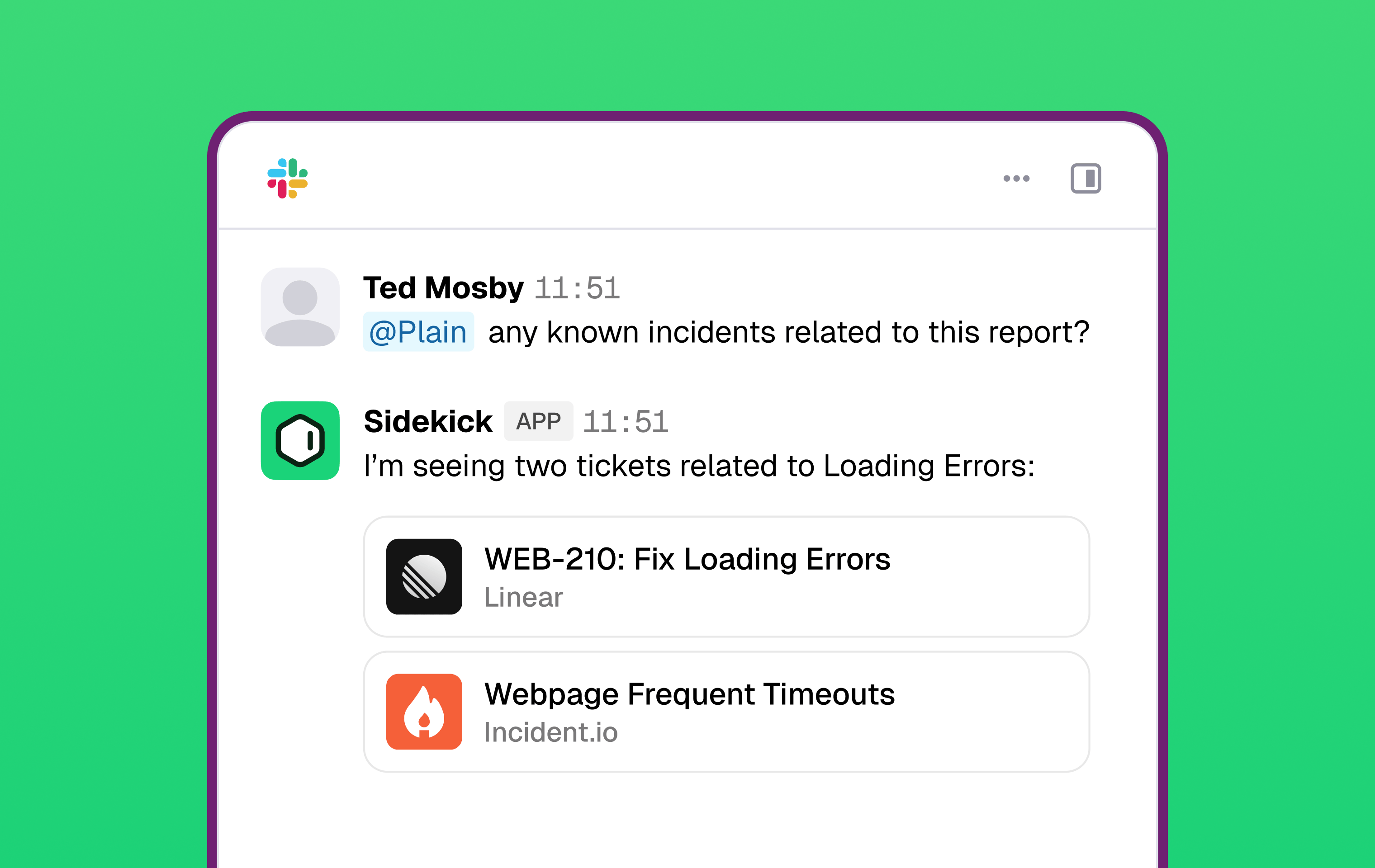
[Sidekick](/docs/product/agents/sidekick), Plain's assistant agent, works from Slack. Mention Plain in a connected channel and it answers there, with access to your knowledge sources, tool integrations, and support history.
Sidekick posts under its own identity and avatar, so it is clear when a reply came from AI rather than a person.
To enable it, a workspace Admin or Owner goes to **Settings → AI → Sidekick → Integrations → Slack**. Plain then creates an `#ask-plain` channel. Sidekick is active in every discussion channel and never in a customer channel, so to add it to a channel such as `#engineering` or `#incidents`, invite the Plain bot there and set the channel's type to **Discussion** in **Settings → Slack**. See [Sidekick in Slack](/docs/product/agents/sidekick/in-slack) for the full setup.
## Set up Slack
In Plain, go to **Settings → Slack** and click **Connect to Slack**. Follow the prompts to authorize the right Slack workspace.
Grant permission for replies to be sent from your Slack profile. This is what lets Plain replies appear in Slack under your name.
In **Settings → Slack**, set up auto-join rules that match your channels by prefix or suffix.
To add a channel by hand instead, open it in Slack, type `/invite`, select **Add apps to this channel**, and choose **Plain**.
Each channel can be a Customer channel, a [Discussion](/docs/product/channels/slack-discussions) channel, or disabled. Set this in **Settings → Slack**.
Messages from connected channels appear as threads in Plain. Type your response in Plain and it posts back to Slack as if you typed it there.
[Ingestion modes](/docs/product/channels/slack-ingestion-modes) control which messages become threads, so a busy channel does not have to create one per message.
## Manage connected channels
**Settings → Slack** lists every channel the Plain bot has joined, one list per connected Slack workspace. Each row sets that channel's type and [ingestion mode](/docs/product/channels/slack-ingestion-modes).
Three controls sit above the list:
* **Search channels**: filters the list by channel name
* **Type**: narrows the list to **Customer**, **Discussion**, or **Disabled** channels
* **Ingestion mode**: narrows the list to one or more modes, including **Team default** for channels with no override
The count beside those controls, such as `11 of 34`, is how many rows your current search and filters show out of the total. It is not a quota. Your plan caps enabled customer channels separately, and Plain shows a notice at the top of the page once you reach that cap.
Select rows with the checkboxes to change the type or ingestion mode of several channels at once. A private channel you are not a member of appears locked, so ask to be invited in Slack before you manage it.
## Sidekick in Slack
[Sidekick](/docs/product/agents/sidekick), Plain's assistant agent, works from Slack. Mention Plain in a connected channel and it answers there, with access to your knowledge sources, tool integrations, and support history.
Sidekick posts under its own identity and avatar, so it is clear when a reply came from AI rather than a person.
To enable it, a workspace Admin or Owner goes to **Settings → AI → Sidekick → Integrations → Slack**. Plain then creates an `#ask-plain` channel. Sidekick is active in every discussion channel and never in a customer channel, so to add it to a channel such as `#engineering` or `#incidents`, invite the Plain bot there and set the channel's type to **Discussion** in **Settings → Slack**. See [Sidekick in Slack](/docs/product/agents/sidekick/in-slack) for the full setup.
 ## AI in Slack
Every AI feature in Plain works on Slack threads, the same as on any other channel. See [Ari](/docs/product/agents/ari) for customer-facing replies and [AI triage](/docs/product/platform/ai-triage) for automatic labeling and prioritization.
AI can generate inaccurate responses, so review them before they reach a customer. Every AI feature in Plain is opt-in.
## CSAT in Slack
You can send [CSAT surveys](/docs/product/platform/csat) to customers who contacted you through Slack, with no extra setup per channel.
## Internal collaboration
[Slack discussions](/docs/product/channels/slack-discussions) let you start an internal Slack thread with your team from a thread in Plain. When the team resolves it, mark the discussion resolved and the thread returns to **Close the loop** status, so the customer still gets an answer.
## Structured intake
[Slack contact forms](/docs/product/channels/slack-contact-forms) collect structured answers instead of a free-text message, and turn each submission into a thread with its fields already set.
## Automation
[Workflows](/docs/product/workflows) act on Slack threads like any other: auto-triage, prioritization, labeling, and routing all run on triggers and conditions you define.
## Security and data retention
Plain reads only from channels the bot has been invited to. [Slack data retention](/docs/product/security/slack-data-retention) sets out what Plain stores from those channels and when it is deleted, for IT and security review.
## AI in Slack
Every AI feature in Plain works on Slack threads, the same as on any other channel. See [Ari](/docs/product/agents/ari) for customer-facing replies and [AI triage](/docs/product/platform/ai-triage) for automatic labeling and prioritization.
AI can generate inaccurate responses, so review them before they reach a customer. Every AI feature in Plain is opt-in.
## CSAT in Slack
You can send [CSAT surveys](/docs/product/platform/csat) to customers who contacted you through Slack, with no extra setup per channel.
## Internal collaboration
[Slack discussions](/docs/product/channels/slack-discussions) let you start an internal Slack thread with your team from a thread in Plain. When the team resolves it, mark the discussion resolved and the thread returns to **Close the loop** status, so the customer still gets an answer.
## Structured intake
[Slack contact forms](/docs/product/channels/slack-contact-forms) collect structured answers instead of a free-text message, and turn each submission into a thread with its fields already set.
## Automation
[Workflows](/docs/product/workflows) act on Slack threads like any other: auto-triage, prioritization, labeling, and routing all run on triggers and conditions you define.
## Security and data retention
Plain reads only from channels the bot has been invited to. [Slack data retention](/docs/product/security/slack-data-retention) sets out what Plain stores from those channels and when it is deleted, for IT and security review.